Dual Monitors – Double the Output?

Dual Monitors

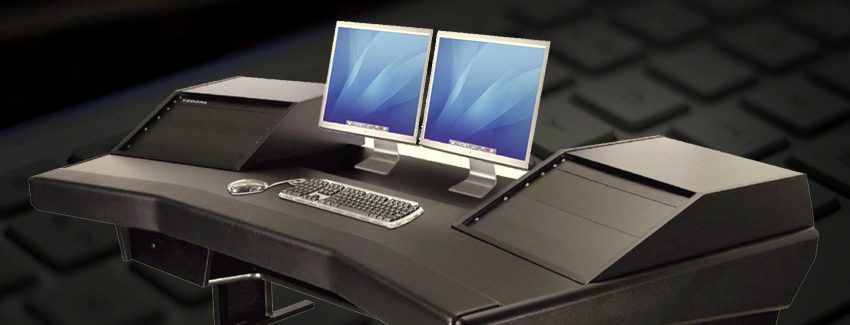
Do you often find yourself opening multiple windows to cater for different requirements of your job, and personal life? Different business email accounts, various websites, the report you are working on, the site you are developing, etc. Have you ever thought about how it would be like to have another monitor to cater for all these? Sound exciting for you? While this can make your system unstable for a moment, it’s going to be a lot better in the long run.

Setting up dual monitor is quite easy. Check if your PC’s video card supports multiple monitors. If it does, then you’re good to go. Otherwise, simply add a second video card to your PC.

Let me run down a few advantages working with dual monitors. Aside from having the capability use a single mouse to drag and drop windows, files, etc from one monitor to another, there are still a few tricks you can take advantage of. When properly setup Windows for two monitors; it will enable you to extend your Windows taskbar to the other monitor. With this, any application or window open from your first monitor can be transferred to the other one, hereby enabling you to increase your productivity by simply moving from one application to another without having to close and open them several times.

Dual Monitors also features a system called “Windows Management” to each window by simply pressing a single button to maximize the specific window on both monitors. Wallpapers work the same thing- you can have one extended on both screens or have separate one for each of them.

Thinking more about this, all features added together will definitely make lives easier and render us more productive, and able to attend to different tasks all at the same time.

Your hard drive crashed! Now what?

Data Recovery CD

You haven’t been backing up your hard drive on a regular basis, and now you’ve lost all your work files, your emails, photos and even your playlist! It’s downright depressing, but fret not as there are effective solutions to address this. What you need to do is take a deep breath, keep a level head, set aside the things you don’t have control over, and figure out what’s worth saving.

As hopeless as it seems

Even the most knowledgeable and cautious among us face some form of data loss in our lives. While this can be a result of an electrical problem or a defective hardware configuration, it still is a devastating experience. If all hope seems gone, there are always various means we can turn to alleviate the nuisance of having to recover lost information.

Get Professional Help

First, you’ve got to realize that even if you can handle general repair and troubleshooting of your computer, data recovery is something that requires the assistance of an experienced technician. These professionals are specially trained to address these specific issues and not only perform recovery of missing data, but also be able to repair any damage that occurred on your hard drive. Confirm that the technician has reasonable experience handling similar hard drive brand and operating system. You don’t want to end up with more damage on your system than what you already have.

RAID Configuration – What is this?

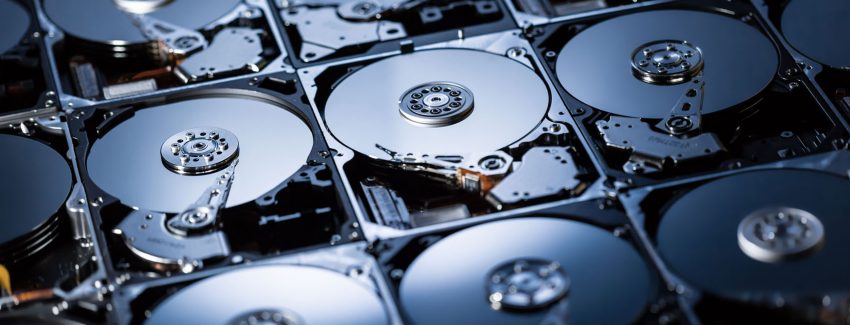
Check if your computer operates on multiple disk drives, or what is called a RAID configuration. If this is so, then recovery of your data could be a bit easier. You can try to do this by yourself by removing the specific hard drive that is not working. You can choose to replace it with a new one, or opt to have it refurbished. The remaining hard drives which are not damaged should be able to restore the missing data. However, one drawback of having a system with multiple hard drives is that in cases of multiple failures, you are forced to bring all these drives to a professional computer technician to get them fixed.

Life after Repair

Now that you’re back up and running, it may be the best time to consider planning for unexpected events. If you were able to understand how the first problem occurred, use this information to set-up some form of preventive computer maintenance. Perform regular back-ups and take the extra step by regularly checking that your anti-virus system is updated.